BIM Viewer
Building Information Modeling
Building Information Modelling (BIM) provides the information to make smart decisions throughout the entire lifecycle of a construction project. BIM improves the cooperation and coordination among the various stakeholders. With BIM, a building is first virtual and then physical. Actual construction begins only afer the virtual building meets all expectations and requirements. During the operational phase, BIM ensures that the building continuously adapts to current requirements, remaining effective and efficient.
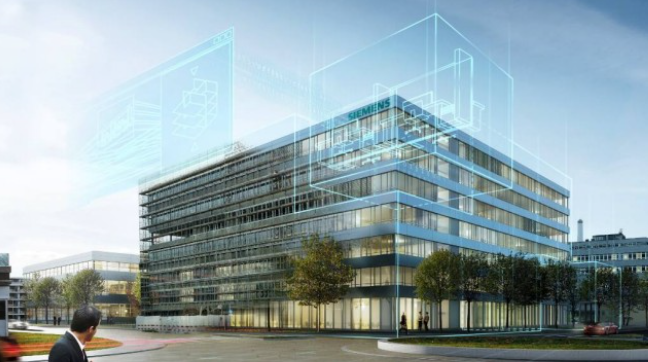
This section includes instructions on using the BIM Viewer. Information on procedures is available in the step-by-step section.
The BIM data imported in Desigo CC can be easily linked to Desigo building automation and control data. Construction changes to the project, for example, subdividing rooms, can be updated without additional engineering by reimporting the BIM data in Desigo CC. Any required changes to the application program must, however, be made separately in this case with ABT Site.
A huge amount of highly detailed data volumes are generated when comprehensively planning with BIM. The scope can impact the performance of Desigo CC. As a consequence, we recommend setting the scope of data for import in advance in consultation with the general contractor. For example, for blinds in BIM, all slats (∽30) for a window are individually referenced. In Desigo CC, the position and angle are evaluated using a reduced number of slat objects (∽8) to simplify the graphical depiction.
Prerequisite Name | Description |
Association | A link between the BIM object and Desigo CC. |
BIM | Building Information Modelling |
BIM object | An object in a BIM file. This can be: Walls, floors, windows, doors, etc., or room unit objects. |
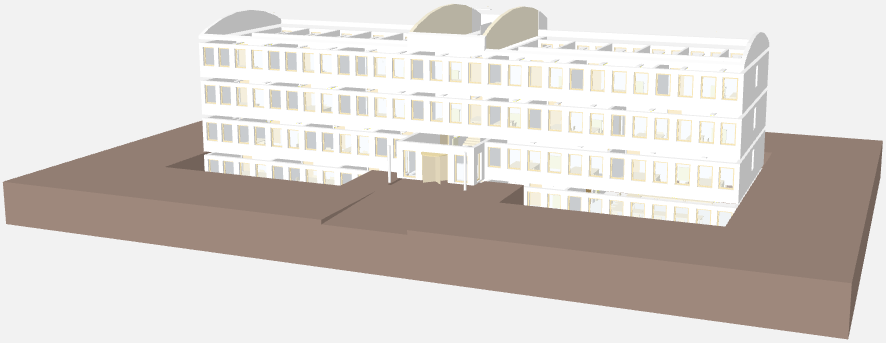
BIM graphic | A Desigo CC graphic generated by importing a JFC BIM file. |
BIM tool | A third-party engineering tool required to manufacture binary building models. The tool creates and manages all relevant data and architectural information. |
BIM Vision | A third-party visualization tool to display IFC files. There are multiple tools of this type on the market. We recommend the BIM Vision Tool (http://www.bimvision.eu). |
Revit | The most popular tool for planning buildings using BIM data. |
IFC file | An IFC file includes all building data in the standardized IFC format. The IFC format is used during export from the BIM tool and can then be imported with the Desigo CC BIM Viewer. |
| Description | Screen display |
| Switches to edit mode |
|
| Switches to floor view if a room is selected. |
|
| Switches to the room view if a room is selected in the floor view. |
|
| Displays the defined output state of the building. |
|
| Displays the floor listed for navigation that is generated from the BIM data. NOTE: The displayed floor names can differ from the system data. |
|
| Displays two different camera positions. The camera position changes automatically when entering a room. |
|
| The selected object is highlighted in color. The other equipment keeps the same color. |
|
| All equipment for the selected room is highlighted in color. |
|
| Reduces the view of the building. Wall and windows are hidden. Engineering: Walls and windows |
|
| Reduces the view of the building. Roofs and floors are hidden. Engineering: Cement plates |
|
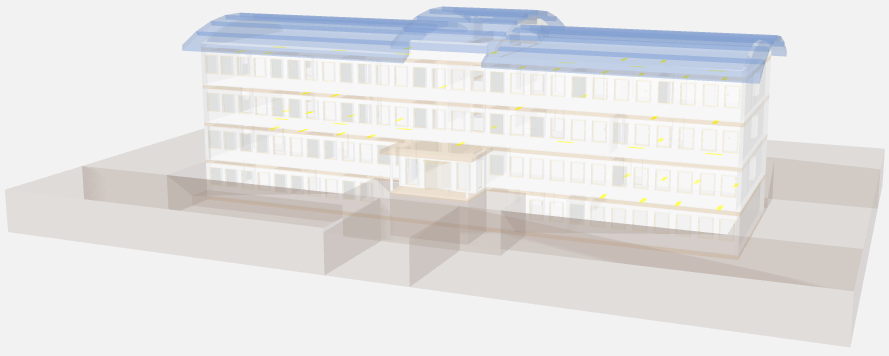
| Displays the building in X-ray image. |
|
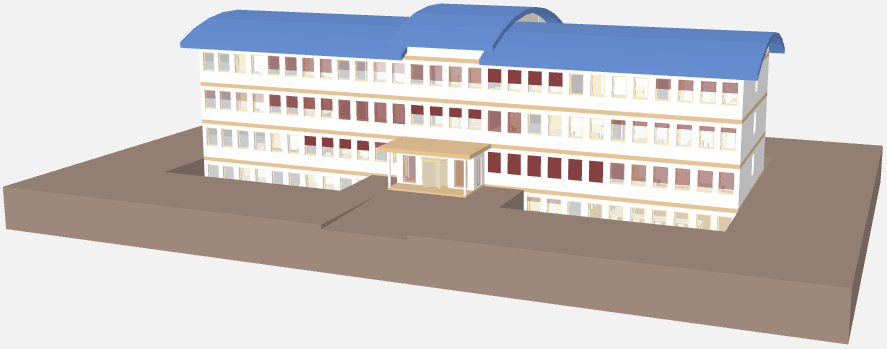
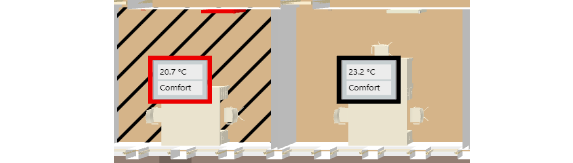
| Displays the room information for temperature and occupancy state. The selected room value display is displayed in the center of the room in red. |
|
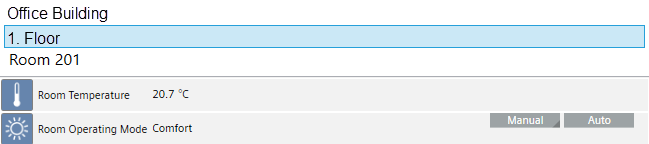
| Opens the state and operating window on the graphic page with the main values. |
|
| Opens the alarm list and displays the filtered alarms. Filter criteria are: Building, floor, or room. |
|
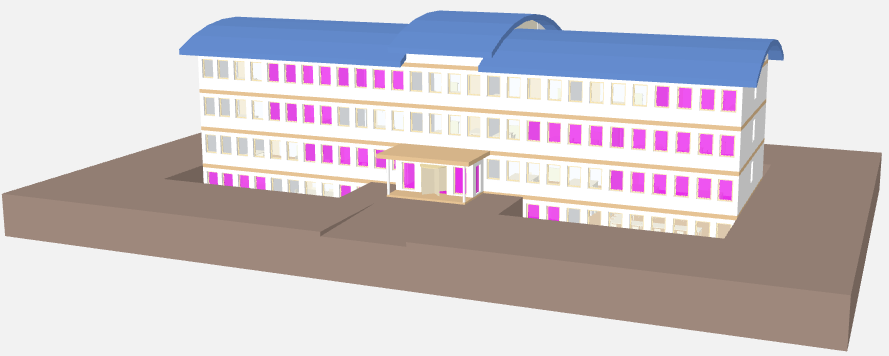
| Displays the room events. Color code: |
|
| Displays the room temperature. Color code with gradient fill between: |
|
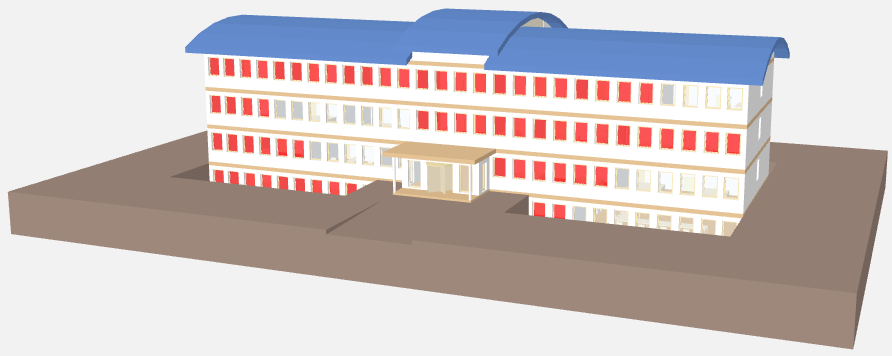
| Displays open windows. Color code: |
|
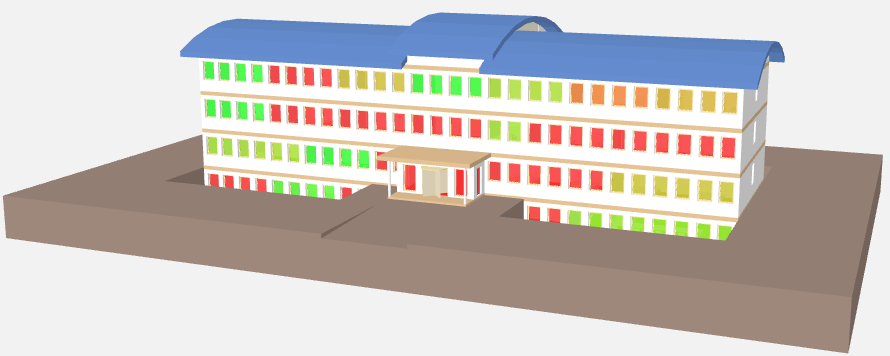
| Displays the room air quality. Color code with gradient fill between: |
|
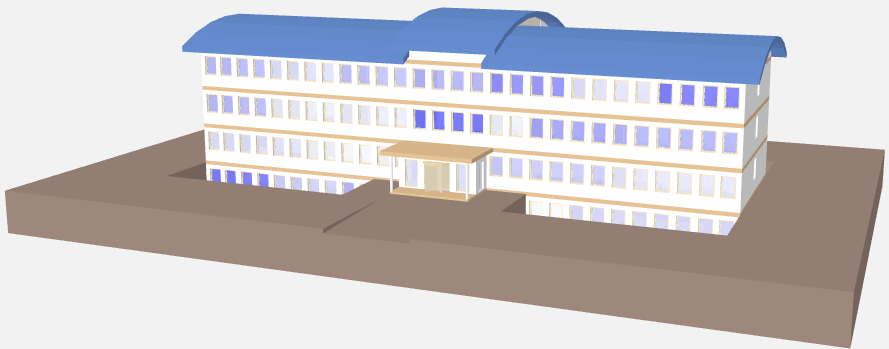
| Displays the room humidity. Color code with gradient fill between: White 0% |
|
| Displays the room occupancy state as per the presence sensor. Color code: |
|
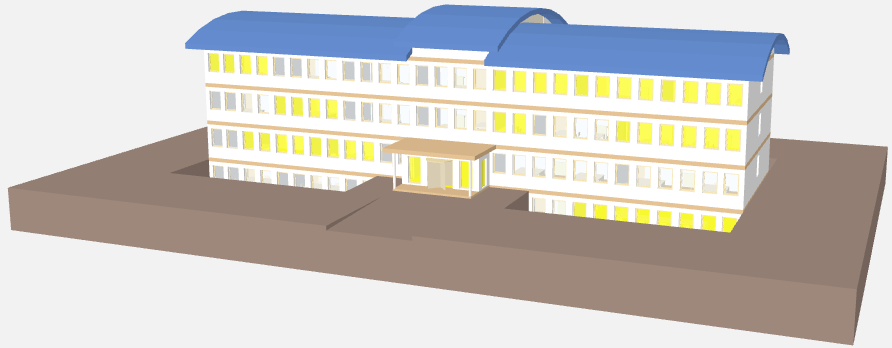
| Shows the room lighting state. Color code: |
|
| Displays the blinds state. The height of the blinds triangle corresponds to the height of the blinds (in %). The angle controls the transparence (0%: Fully transparent, i.e. no color; 100%: Full color) |
|
| Displays the data sheet for the selected organization in all available languages. The user must select the desired documentation language. Internet connection required for this URL function. |
|
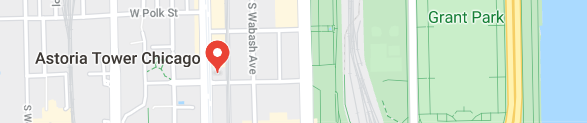
| Displays the location of the building in Google Maps. |
|


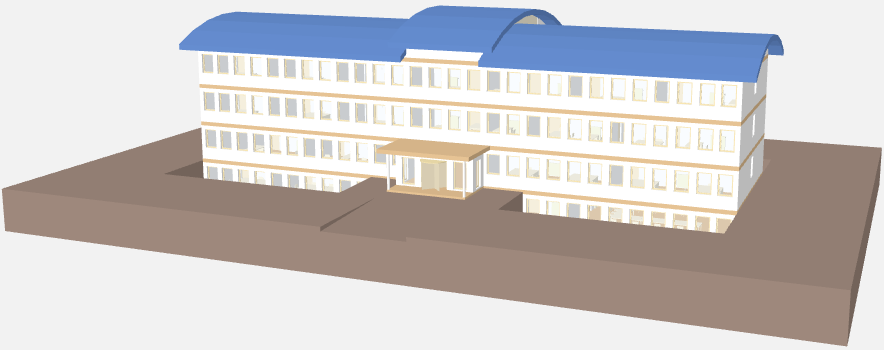




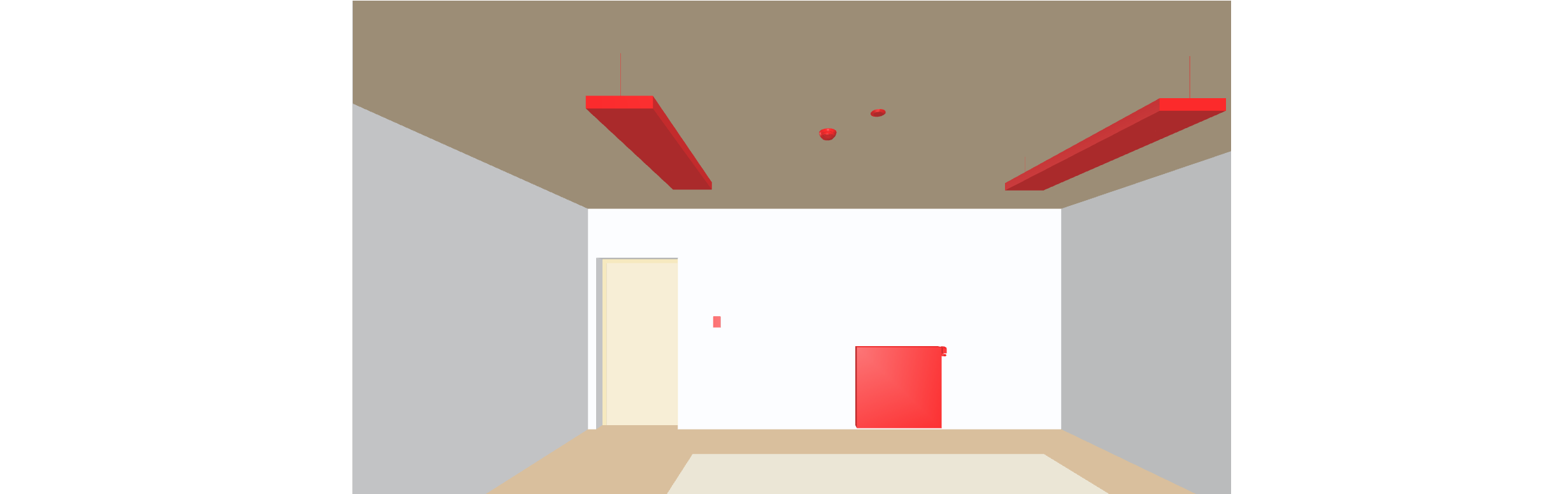

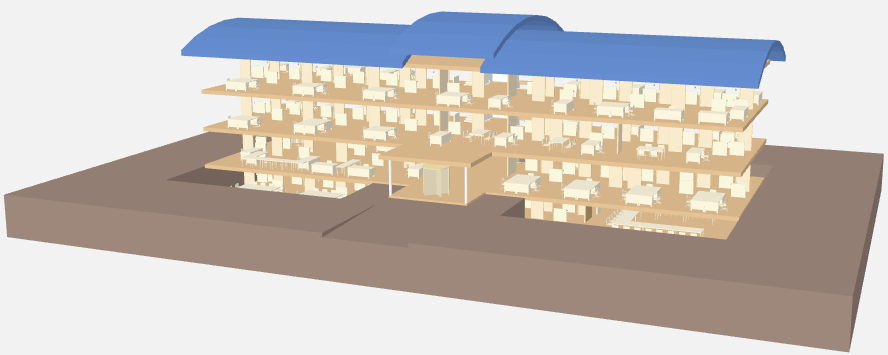






 <= 19°C
 21°C
21°C 23°C
23°C >=25°C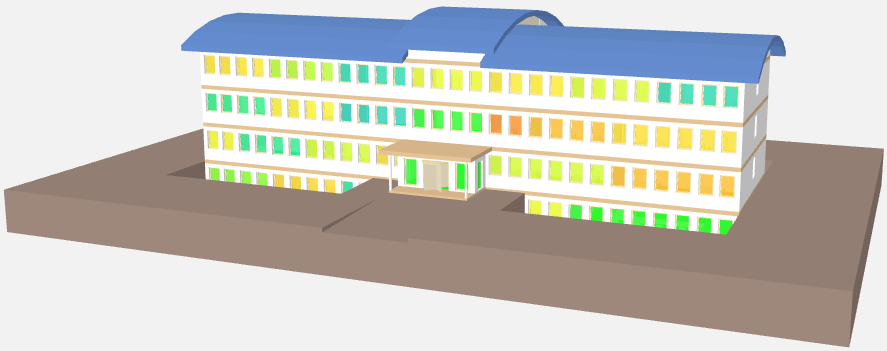




 Occupied