BIM Viewer
To work with Desigo CC BIM Viewer, the following prerequisites are required or recommended:
- IFC file(s) of the BIM model(s) to integrate must be available for importing. These files can be exported from a BIM tool (for example, Autodesk Revit).
- Rooms must be defined in the BIM tool. Otherwise, no recursive associations between Desigo CC objects and BIM objects are possible. (Manual associations are always possible.) In addition, many room-oriented functions (such as, display of room-related values through windows, etc.) will not work without rooms.
NOTE: Since multiple IFC files can be combined (see Combining Multiple BIM Graphics), the rooms are extracted from the base BIM graphic (the graphic to which the additional BIM graphics are added using drag-and-drop). All rooms in the additional files are ignored. - To be able to display/handle room equipment, these objects must be defined in the BIM tool and exported to the IFC file. Adding equipment to Desigo CC at a later date is not supported.
- The automation station export files (such as, SiB-X files) of the building(s) to be integrated must be available.
- To enable the recursive association for the “architectural” hierarchy (floors, rooms), the names (or descriptions) of the Desigo CC objects (floors, rooms) should be aligned with the corresponding BIM object names.
- To customize the process of recognition/association of equipment, it may be necessary to customize the mapping table (see The Product Mapping Table). It may also be necessary to configure special property values of BIM objects in the BIM tool (Revit).
| Description |
| Common part (the symbols for display is based on the configuration) |
| Objects defined in the L filter are not loaded when opening the graphic. |
| The available functions are displayed, for example, temperature, humidity, when selecting the Building automation and control icon. The visibility of the discipline is defined in the Configuration expander. |
| The available functions are displayed when selecting the Fire icon. The visibility of the discipline is defined in the Configuration expander. |
| The available functions are displayed, when selecting the Access control icon. The visibility of the discipline is defined in the Configuration expander. |
| The available functions are displayed, when selecting the Intrusion icon. The visibility of the discipline is defined in the Configuration expander. |
| The available functions are displayed, when selecting the Video icon. The visibility of the discipline is defined in the Configuration expander. |
| Engineering part (unlisted icons are described in operation) |
| Import of BIM data in format: ifc, xbim, ifcml, ifcc |
| Deletes the opened BIM graphic. |
| Deletes the related time from the present BIM object with Desigo CC object data (and, if selected, the underlaying objects as well). |
| The initial view can be set when opening an individual graphic overview or individual rooms. You can do this for each room. |
| BIM data retains the data that is not mandatory for operation, for example, building supports or base plate required for the stability of the building. All this information can be hidden using a hide filter. |
| BIM data can be provided at various levels of granularity. No merge is needed if all the data is provided in one BIM file. BIM data must be merged if it is subdivided into building data and electrical and mechanical installation data. |
| Saves the opened BIM graphic. |
| Displays the BIM object tree. BIM objects can be linked to or removed from project data. |
| Updates the links for all the project data. This function overwrites any unsaved associations. |
| Generates a 2D graphics from the BIM data. |
| Opens and closes the Configuration expander. |


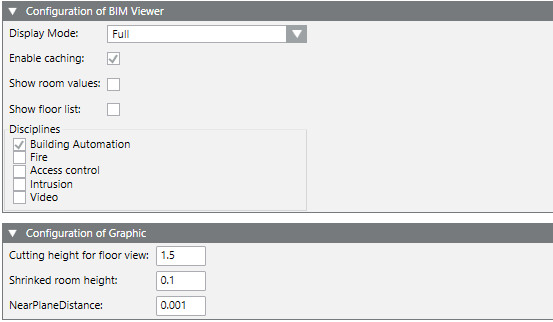
BIM Viewer Configuration | |
Display Mode | Full: Recalculates all the graphic objects as soon as the cursor is moved. Requires a lot of RAM. Optimized: Graphic objects are not calculated within a building in the overview. In the floor view, only those graphic objects are calculated that are located on this floor. This procedure significantly reduces computer power. |
Enable caching | The BIM data is saved temporary if the check box is selected to quickly form the image. The cache is updated with <Alt> + <Home>. |
Display room values | If enabled, the room value box is displayed when opening the floor overview. Room value display |
Show floor list | If enabled, the floor list is displayed when opening the floor overview. Floor list window |
Disciplines | If enabled, the disciplines Building automation and control, Fire, Access control, Intrusion, Video can be individually enabled. |
Graphic configuration | |
Cutting height for floor view | This value indicates the level (in meters) above the level of the lower flow that has a cut out of a flow in the floor view. All rooms are cut to the same height. |
Reduced room height | The system adds "shrinked room" objects when selecting the room colors. Depending on the concept of the BIM model, some rooms include floors while other do not. A selected / color room is not visible if a room does include the floor and the floor is thicker than the "shrunken room height". You must increase this number, for example, if no shaded pattern can be seen when selecting a room. |
Level distance | This is a special value that normally is not changed. Changing the value can be helpful if the surface of some BIM elements "flicker" when moving/turning the model. |
 can show or hide the box at any time.
 can show or hide the list at any time.
Apply the following rules to link data point to BIM objects:
- Building, floor, room are linked by comparing the data point description (in the current engineering language) with BIM objects on the same hierarchy level. NOTE: BIM object names can only be supplied in one language.
- The data point description and the BIM object name must be identical to link them. An algorithm performs the best possible link.
- The link with the BIM data can occur from any Desigo CC view. The logical view is the best view since it is nearly identical to the view created from the BIM data.
- Room units (objects below the room level) are controlled with the help of an assignment table. For more information, see the Assignment table.
- You can also use drag-and-drop to manually link data points to BIM data.
- More than one data point can be linked to a BIM object.
The step-by-step instructions are described in Workflow.
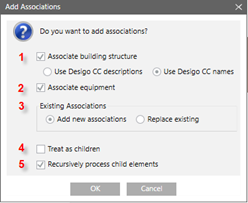
Add options in the Associations dialog box | ||
| Section | Description |
1 | Associated building structure | If enabled, the association process attempts to associate the Desigo CC data points for floors/rooms with the associated floors/rooms in the BIM data. You can select with the two options below, whetherDesigo CC names or descriptions are used to find associated BIM elements. Note: Desigo CC names are used by default. |
2 | Associated facility | If enabled, the association process attempts to associated room units from Desigo CC with devices in the BIM data. This action uses the file ProductMapping.csv that defines various rules for defining devices and associations. Additional information on this file is available in the Product association table. |
3 | Existing associations | Select whether to add existing or replace existing associations. |
4 | Treat as children | If enabled, the selected Desigo CC data points are not associated directly to the target BIM object, but rather are treated as child elements of the target BIM object. Example: In the technical view, multiple rooms can be selected and dragged to one BIM floor object. If Treat as children is enabled, these rooms are associated with the rooms on this floor. If enabled, all Desigo CC rooms are associated with the BIM floor object. |
5 | Recursively process child elements | If enabled, all child elements for the selected parent objects are associated recursively. If cleared, only the selected nodes are associated with the target BIM object. |
Example of possible automatic associations | ||
BIM data | System data | Association |
1. floor | 1. floor | Yes |
1. floor | 1st floor | Yes |
1. floor | 1. floor | No |
1. floor | Floor 1 | No |
1. floor | First floor | No |
Example of applied rules:
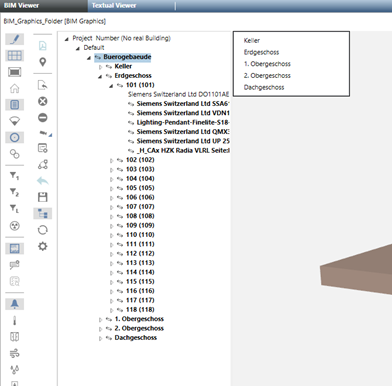
- If Associated building structure is enabled:
- Buildings, floors, and rooms can be associated with the BIM object names on the same level by comparing the Desigo CC data point names/descriptions (independent of the selected option field in the current language) (NOTE: BIM names are no language-neutral),
- The names/descriptions of the objects must be exactly the same. An approximation algorithm is used.
- The drag source node or nodes are always associated the drag target unless Treat as children is enabled.
- In the current example, the technical view is used as the drag source. This is practical since this view often includes a hierarchical building structure like BIM. In principle, however, any view can be used to configure associations.
- If Associated facility is enabled:
- The room equipment (in other words, object below the room level) are associated using an association table. Additional information on this association algorithm is available in the Product association table.
- The recursive association is not limited in a view to an existing room/device hierarchy. A property string mapping can also control it (see the Product association table).
- It is possible in principle to associated each data point using an individual drag option without using the integrated recursive association algorithm.
- More than one data point can be associated to the same BIM object. In other words, a target node (BIM) can have multiple associations.
There are no restrictions to using the BIM Viewer in distributed systems. All settings are considered in the System Management Console.
